
Guides / Fretworks & Tuner
Getting started with Fretworks
Setup, your first graded run, how stars work, the tempo ladder, the course, and practising your own songs.
- Fretworks
Setup
The first launch walks you through six short screens: input, microphone, tuning, a timing check, how stars work, and where things live. Connecting a cable or interface explains the input choices.
Free and Practice
- Free: play anything; the note you play lights on the board. Pick Arpeggio or Scale, a Root and a Type. Nothing is graded.
- Practice: the header becomes one chip naming the exercise; tap it to pick another or change its setup.
- Show the exercise as the Fretboard, Tab, Score or a Highway of notes coming toward the board.
Your first run
- In Practice, set Notes (quarters, 8ths, triplets, 16ths), Repeats (1, 2, 4, 8 or ∞) and Tempo.
- Press ▶ Show me to watch a hand finger every note in order. Nothing is graded.
- Press Start. After a count-in, play along; a white ring marks the note to play now.
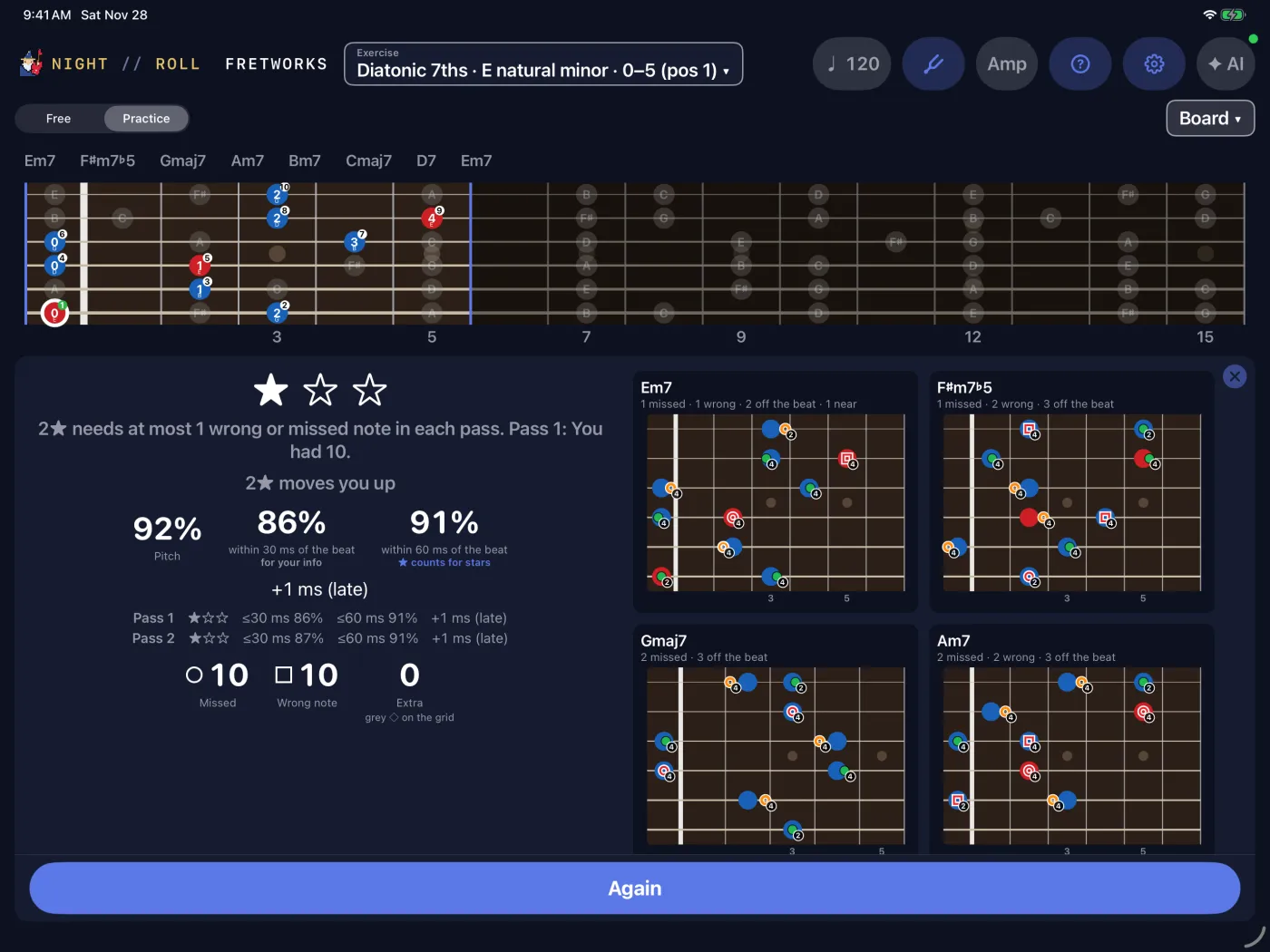
- When the run ends, a result card shows stars, the numbers and the beat lane. Again, Up and Down start another run.
How stars work
- 1★ is a pass: nine in ten notes right, at most one stray pick per pass, and no more than one in ten notes way off the beat.
- 2★ adds at most one wrong or missed note per pass, and four in five notes close to the beat.
- 3★ is every note right, no stray picks, and nine in ten notes close to the beat, in every pass.
“Close” is within 75 ms of the beat at 60 BPM 8ths (60 ms from about 100 BPM up); slow tempos get a little more room. The card says what stopped a pass or the next star.
Marks on the board: a green disc is right and on time; an orange ring is the right note off the beat (left of centre early, right late); a red square is a wrong note or octave; an empty red circle is missed.
The tempo ladder
- A timed run of 2★ or more moves the ladder up, if the run has two full passes (Repeats 2 or more).
- The Tempo menu shows your best stars at every tempo you've played. 40 and 50 are there for slow work. Every tempo stays pickable.
- A greyed tempo says why, for example “too fast for 16ths”: notes closer than a tenth of a second blur together.
- Wait (first item in the Tempo menu) stops the run at each note until you play it. It has no stars and never counts toward the course.
The course and Today
- Exercises › Course is a guided order: 9 units, each exercise climbing from 60 BPM to a goal tempo in all 12 keys.
- Two runs of 2★ or more at a tempo (or one 3★ run), each with two full passes, move it up. The goal in 3 keys unlocks the next exercise.
- ▶ Next up selects the next item, settings and tempo included, without starting it.
- Nothing is locked: tap any exercise or key, and Mark done skips one you know.
- Exercises › Today is a small daily set: a warm-up, the next course item, a review, and a section of your own music.
- Runs through the iPad speaker count toward the course only when timing is graded (see inputs).
Practising a song
- Import a song (MIDI, MusicXML, Guitar Pro, guitar-arrangement XML, a song archive or text tab) from Files, the share sheet, or Import music…. There are no options: the whole song comes in.
- It lands in Library › Imported pieces as the whole song, plus one exercise per section the file names.
- A file with several parts shows a Part menu; the other parts play along as backing (Backing, hold it for the level).
- Drag across the bar strip above the board to loop any bars. The Speed slider goes from 10% to 200% of the song's tempo.
If the song is in another tuning, a card offers to tune down or to play it in your tuning (the backing is pitch-shifted to match).
Tuner and Amp
The tuning-fork button next to the metronome opens a tuner that follows the Tuning in Settings. Amp plays your guitar through a modelled amp and pedals; it needs a cable or interface (why).