
Guides / Retro Player
Using the Retro Player
Import, the library, the queue, muting channels, loop count and fade, and the lock screen.
- Retro Player
The five tabs
- Library: your imports by set, with a search for games and tracks and Import files…. To remove an item, tap its remove button, then tap again to confirm.
- Queue: what plays next. Shuffle, and repeat all, one or off.
- Tracks: every channel of the song playing. M mutes, S solos, the slider is that track's volume for this listen. Nothing changes the file.
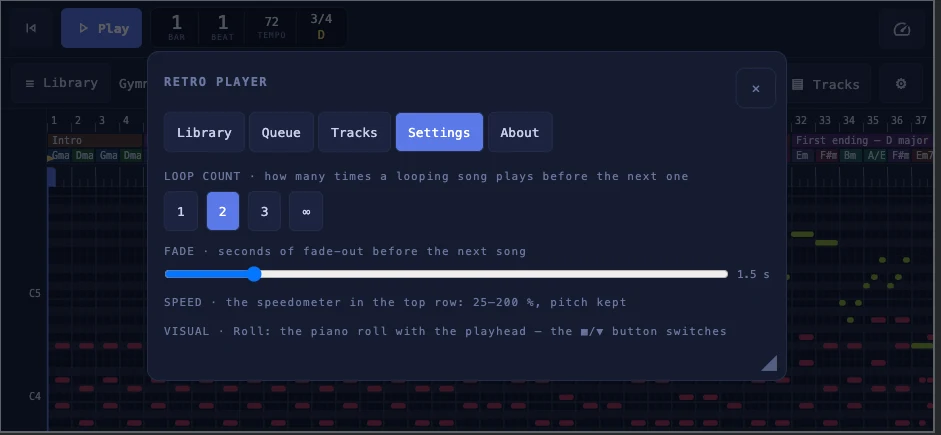
- Settings: loop count and fade.
- About: the app and its credits.
Import
Tap Import files… in the Library, or share files to the app. Pick a file, a set's files together, or a zip with its playlist. What to pick for each format.
Watch it play
- Roll: the piano roll with the playhead, each channel in its own color.
- Fall: notes drop onto the piano keys as they sound.
- Speed: the speedometer in the top row, 25% to 200%, pitch kept.
Loops that end
Game music often loops forever. Loop count sets how many times a looping song plays before the next one (1, 2, 3 or forever), and Fade sets the seconds of fade-out.
Background and lock screen
Music keeps playing when you leave the app or lock the screen. The lock screen, Control Center and headphone buttons play, pause and skip.